
Inblock Smooth Block is a WordPress plugin that makes it easy to add elegant micro-interactions to your Gutenberg blocks. It allows you to create interactive websites effortlessly, without writing any code.
Philosophy
- Eco-design: this plugin is built to be as lightweight as possible: no JavaScript on the front end, no images loaded (Unicode icons are used instead).
- Compatible with all themes: this plugin is designed to enhance Gutenberg blocks in an additive way and remain as compatible as possible with themes.
- Accessibility: designed to meet accessibility requirements as fully as possible.
Download
- Latest version: Inblock-smooth-blocks v.0.8.1
Available micro-interactions
Button block
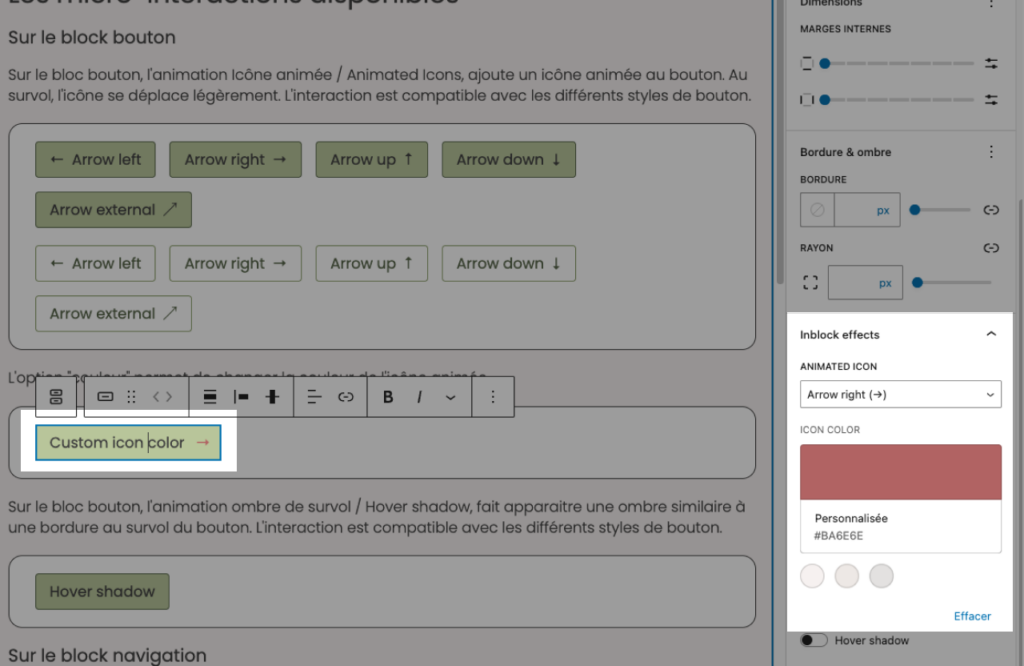
For the button block, the Animated Icons effect adds an animated icon to the button. On hover, the icon moves slightly. The interaction is compatible with the different button styles.
The Color option lets you change the colour of the animated icon.
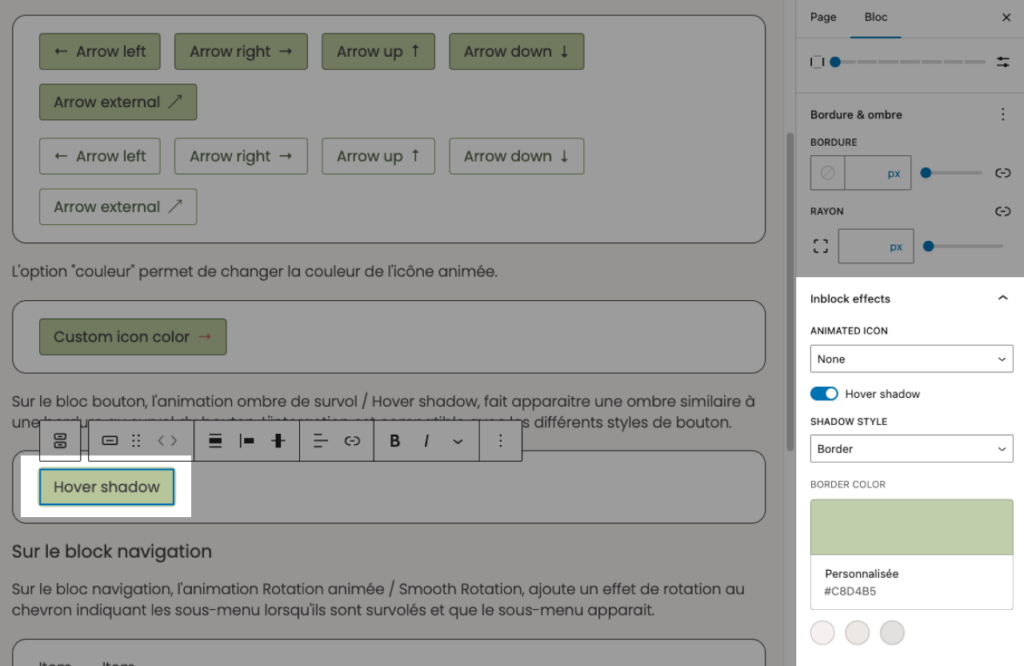
For the button block, the Hover shadow effect displays a shadow similar to a border when hovering over the button. The interaction is compatible with the different button styles. The options let you choose the colour and thickness of the added shadow, and select between two visual styles: border and rise.
Navigation block
For the navigation block, the Smooth Rotation effect adds a rotation animation to the chevron indicating submenus when hovered and when the submenu appears.
Group block
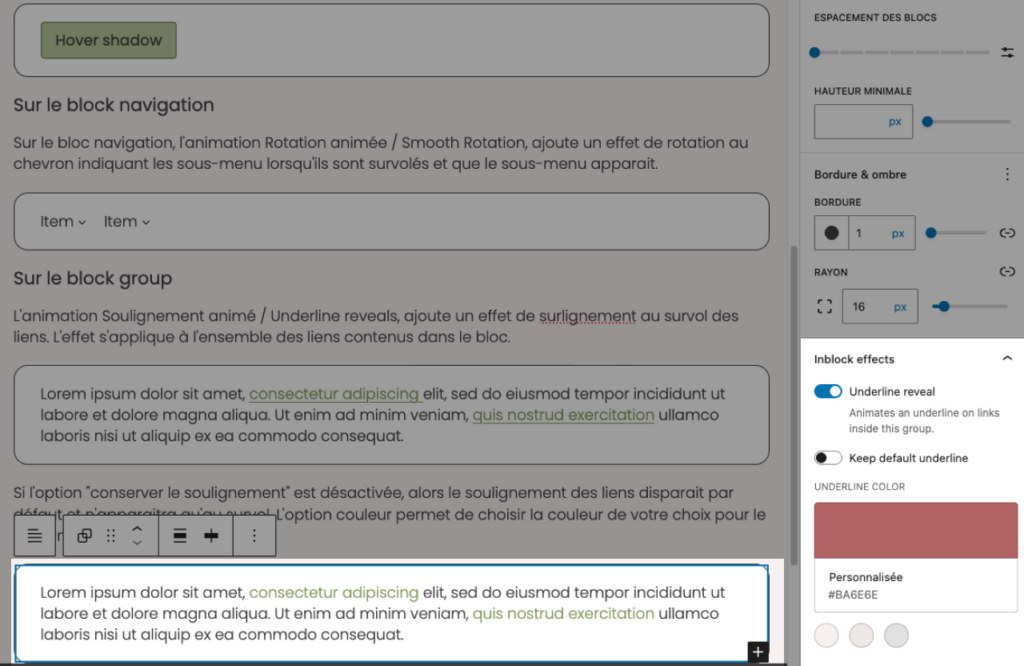
The Underline reveals effect adds a highlight-style underline effect when hovering over links. The effect applies to all links contained in the block.
Lorem ipsum dolor sit amet, consectetur adipiscing elit, sed do eiusmod tempor incididunt ut labore et dolore magna aliqua. Ut enim ad minim veniam, quis nostrud exercitation ullamco laboris nisi ut aliquip ex ea commodo consequat.
If the Keep underline option is disabled, link underlines are hidden by default and only appear on hover. The Color option lets you choose the underline colour you want.
Lorem ipsum dolor sit amet, consectetur adipiscing elit, sed do eiusmod tempor incididunt ut labore et dolore magna aliqua. Ut enim ad minim veniam, quis nostrud exercitation ullamco laboris nisi ut aliquip ex ea commodo consequat.
How to use it
From the editor, when you select a block for which an animation is available, you will find a new Inblock Effects panel in the Styles tab of the selected block. From this panel, you can enable, disable, and configure the available animations.
Support
If you need help, have a question, or would like to share feedback, feel free to contact us.
Download
